
Winning against all odds
神道


Just Bearing
Sing to determine the “will” of “Our Father which art in heaven, Hallowed be thy name”:
Lahari
Pujari Pralaya I AM THAT I AM
What? Sri Ranganatha.

MI-6
Ray, ray@rayservers.com, became MI-6 Chief, by righteous conquest. A corrupt internet, backdoored at the core, shall be replaced. By Letters Patent, Queen Elizabeth the Second, made him, by the grace of YHVH, His Majesty. Queen Elizabeth the Second is very much alive.

Ray, ray@rayservers.com, MI-6 Chief, C, Joint Intelligence Chief, c/o Global Isles Court of Record, Windsor Castle, London.
Manage ChangeIn times when sudden and unexpected changes are occurring on a daily basis, Rayservers is driving that change toward both the common and individual good. Trade with confidenceClosing a large contract? As every significant player world wide knows, deals fail when bank transfers fail. We participate in a settlement platform can ensure that payments and contracts happen without rude interruption from Caesar. Common Law, cryptography, a voluntary Gold Standard, functional programming languages, network encryption and global secure communication are essential to liberty, security and property rights. We help ensure the Rule of Law without distinction of people and nations. Are you satisfied with your Government, Bank, Lawyer and Accountant?Let us also not forget to ask if you are happy with your Internet Service Provider, your mobile phone company, your computer, your email system and your Travel Service Assistant (TSA)? We have our own encrypted voice, data, payments and mobile network. We decided to get happierWelcome to Rayservers, where every product, service, solution we offer was created because we needed it. We have a special for small business Entrepreneurs! |

 |
A voluntary, deliverable gold standard has been founded on the protection of Common Law. There is no need for the the crutches of 'banking' when we already run. |
Making news
We operate on the understanding that privacy, protection of private property and freedom of speech is pivotal to companies that wish to thrive. Our blog features inspiration, breaking news from the forefront of law and money, as well as technical notes.
Tech cloud
SSL/IMAP/POP email, PGP, VPN, SIP, Voice over IP, privacy, secure chat, private conferences, Encryption, AES, all platforms, secure messaging, robust, scalable, responsible support, multiple servers, logs, autonomous access, ASN, BGP, tier1 bandwidth, co-location, hosting, systems, toughbook, equipment, cloud, custom, mobile, Common Law, Gold Standard.Internet for this generation
At Rayservers we understand trade. Your net real property rules. We want you to make money today, make money in the long term and keep the money you make. Real money, not the money created or stolen by Caesar.
“Render unto Caesar what belongs to Caesar and to God what belongs to God” even as Father Benedict XVI preached in his Christmas message of 2012.
We want you to enjoy privacy and zero spam email because without privacy you will not protect your liberty and thus protect your money and your life. Global secure communication is our raison d'être.
 Our software and network consulting will identify exactly where financial and network security related vulnerabilities exist.
In the initial conversations and as part of our service, we can provide clear reason as justification for every design choice.
We can assist with your choices regarding technology, jurisdiction, incorporation and payment systems. More...
Global secure communication
Network Layer Privacy - get real world protection you can trust using encrypted tunnels also known as a Virtual Private Network (VPN) for voice and data that results in a private internet that is outside the reach of warrantless spying. Learn more about what is a VPN? ...
Encrypted enterprise networks
With this system, all internet traffic is protected and you have the option to secure your wireless networks to extend coverage.
VPN encrypted voice over IP
With a top quality SNOM on your desktop, Rayservers brings you dial-in and out to PSTN with secure VPN access to our network.
|
We are proud to host the Global Isles Court of Record. We believe that Common Law and a voluntary Gold Standard shall prevail. The Court shall establish integrity, trust in the word, certainty in contracts and the Rule of Law. |
|

Consulting
The founders of Rayservers are at the forefront of practical Common Law and a deliverable, voluntary Gold Standard that is reclaiming the liberties that spread the English civilization to the ends of the Earth.
We have created Truledger and Loom and an advanced multi-os distributed agent application web server for programmable markets. Our vision is one of a peer-to-peer internet that cannot be disrupted.
Probability markets that harvest the natural arbitrages that occur in the fulfillment of contracts will create efficiencies never before seen in trade.
Imagine all that power to your elbow - and of course the ones you talk to.Why Rayservers

Rayservers is an Internet presence provider, specialized in Geographically Redundant Networks, load balanced and multi- homed architecture. We routinely design sophisticated network architecture to optimize data safety and lower operational cost. Sensitive data alone can be placed on redundant encrypted servers in different jurisdictions.
Rayservers provides architecture needs assessment and custom consulting services to businesses wanting to leverage the latest technology.
Contact us to learn how our technology can be used to harvest arbitrage opportunities in probability markets!
Connections, Connections, Connections !
The kinjō tennō 今上天皇, The Shinto 神道, LORD God shinto 神道 WHAT? Idomoo 挑む kamisama 神様 bun 文
Deuteronomy 6:4 Hear, O Israel: The LORD our God is one LORD: 6:5 And thou shalt 💕love💕 the LORD thy God with all thine heart, and with all thy soul, and with all thy might. 神道.
The King James Bible : The Fifth Book of Moses Called Deuteronomy.
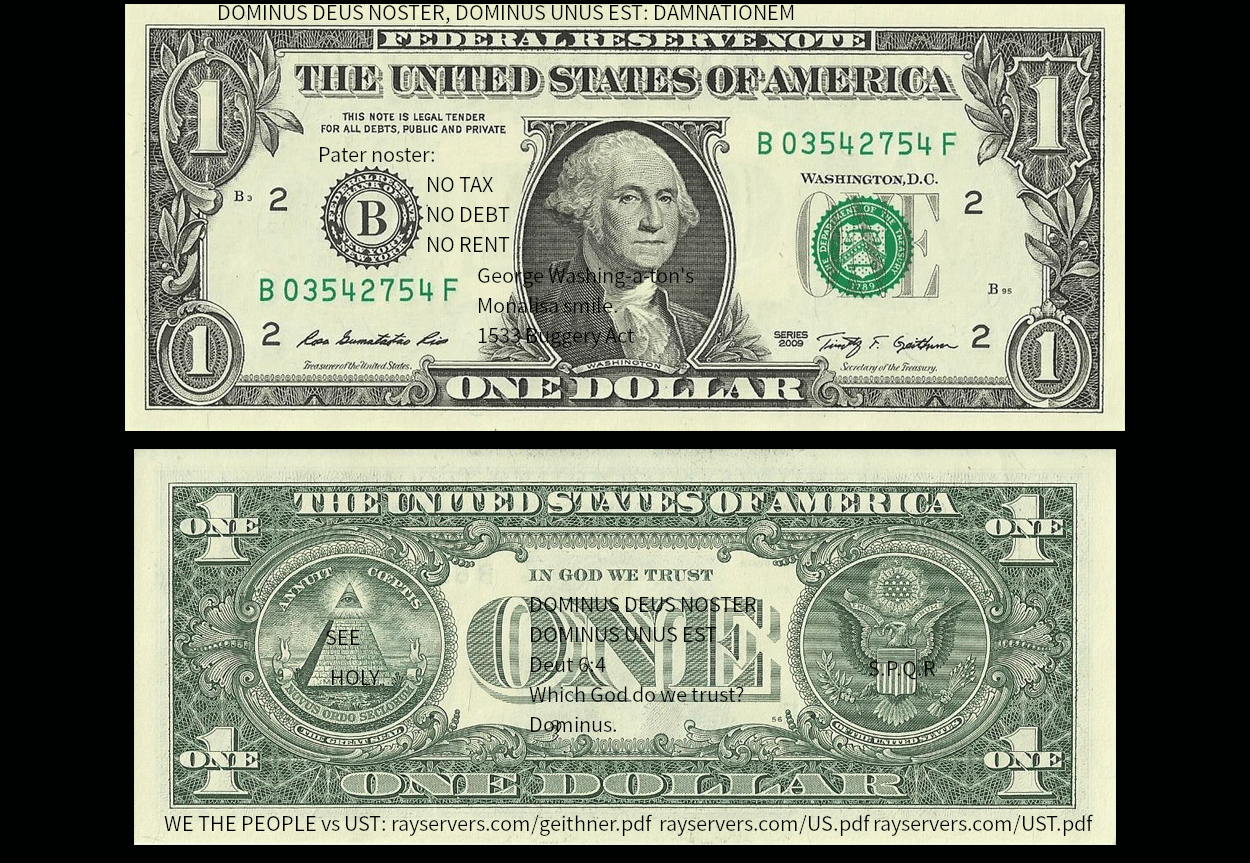
The Court of Record has defeated the Church, the Roman Curia and the State. All the world's black magicians, Jesuits, Doctors of Evil, Superweapons, Navies, Armies, Rapists, Voodoo and whatnot.
